

What it does
A stolen password should not be enough to gain access to the Back Office. The module adds a second factor without sending the secret to third-party APIs.
How it works
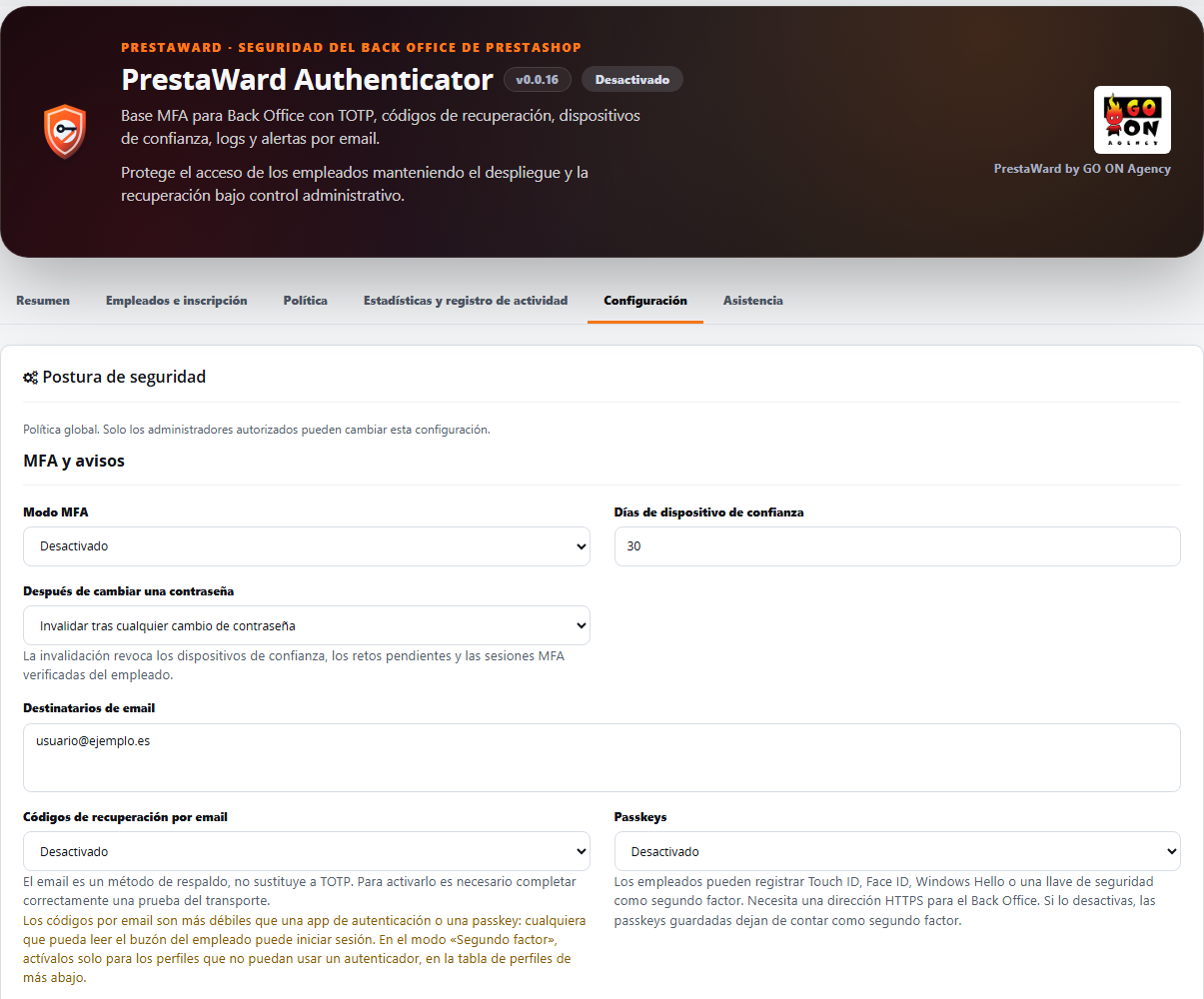
- The second factor consists of one-off codes (TOTP) generated by an authentication app on a mobile phone. If you enable this for a profile, employees with that profile can instead use eight-digit codes sent by post; this is a weaker method because anyone who can access the postbox can log in; the dashboard and the employee’s page warn of this. It is disabled by default. Support for passkeys is included but disabled by default in this version.
- Each employee sets up their own two-factor authentication via ‘My authentication’, using a QR code generated within the shop itself. The initial set-up is guided: scan the QR code, enter the code, and a final page displaying the recovery codes appears. The button to proceed to the Back Office is only activated once the employee has downloaded, copied or printed these codes.
- It is installed in Disabled mode. In Audit only mode, it logs access attempts without blocking anyone, and in Force mode, it requires two-factor authentication. An employee who has not yet configured it must enter their password and can only access ‘My authentication’ until the configuration is complete.
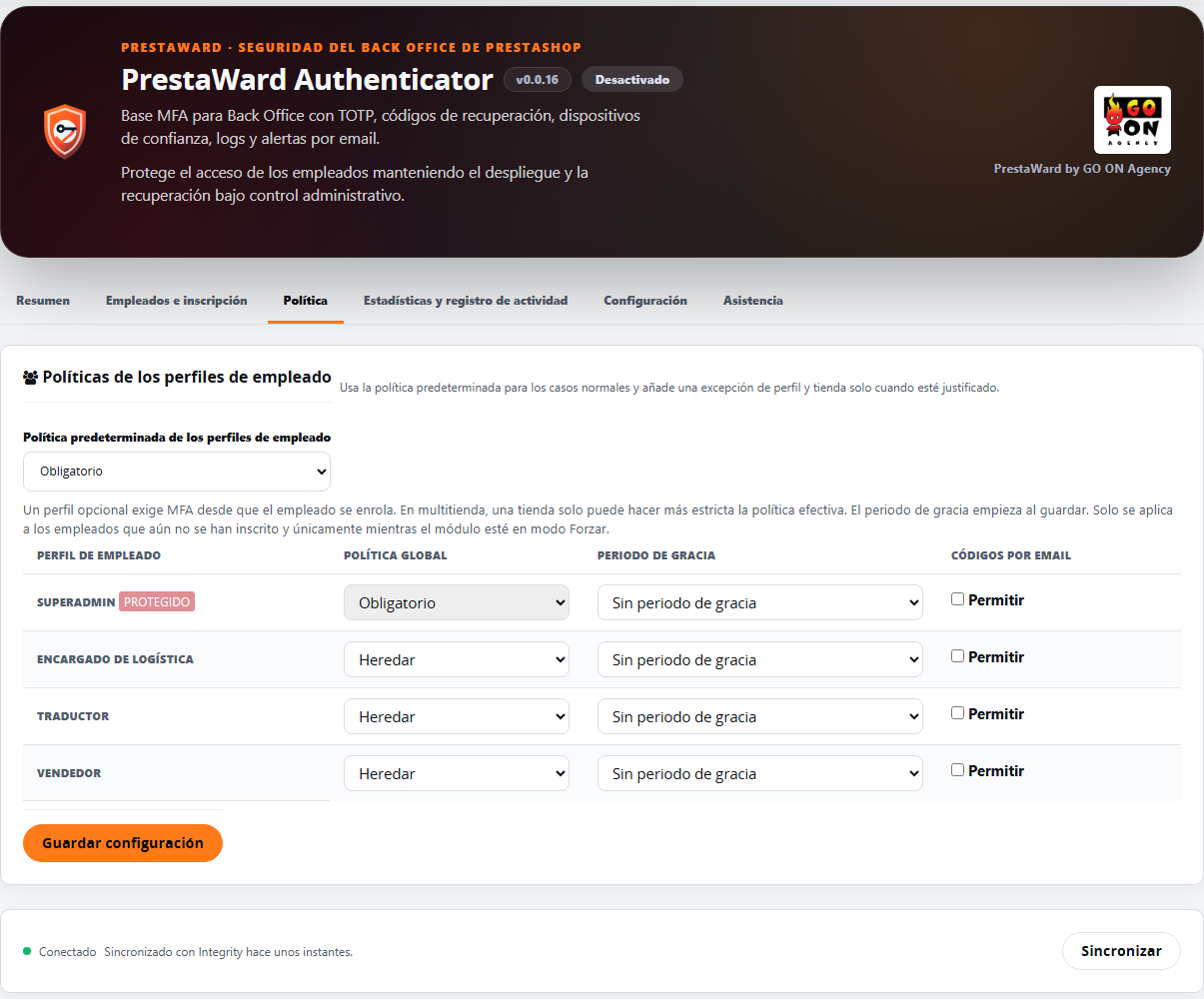
- The policy is defined for the entire shop and can be adjusted by profile and per shop. In multi-shop set-ups, the strictest policy applies.
- Before enforcing this, you can grant a profile a grace period of 3 to 14 days. Employees who have not yet registered can log in as normal; on every page of the Back Office, they will see a notice stating the date from which two-step authentication will become mandatory, and the dashboard shows how many are still to register. Once the deadline has passed, ‘Enforce’ is applied as usual.
- Trusted devices (30 days by default) prevent the system from requesting the code every time a known device accesses the system. Each employee can revoke them individually.
- Password and code attempts are limited (by default, 5 code attempts every 5 minutes and a 15-minute lockout). A TOTP code cannot be reused. If PrestaWard Captcha protects access to the Back Office and rejects the request, the failure counts only towards the IP limit and not towards the lockout of the attacked administrator’s account: a bot without a token can no longer lock out an account with just a few requests.
- From time to time, the MFA policy is renewed with a signature from the PrestaWard Integrity service. Only technical installation data is sent to Integrity; TOTP secrets, recovery codes and employee data are never sent.
If an employee loses their mobile phone
- Personal recovery codes: by default, each employee receives 10 single-use codes when setting up their two-factor authentication and must keep them separate from the shop.
- Optional recovery via email: during the second step, the employee can request a code by email. This feature is disabled by default and must be enabled by a super-administrator.
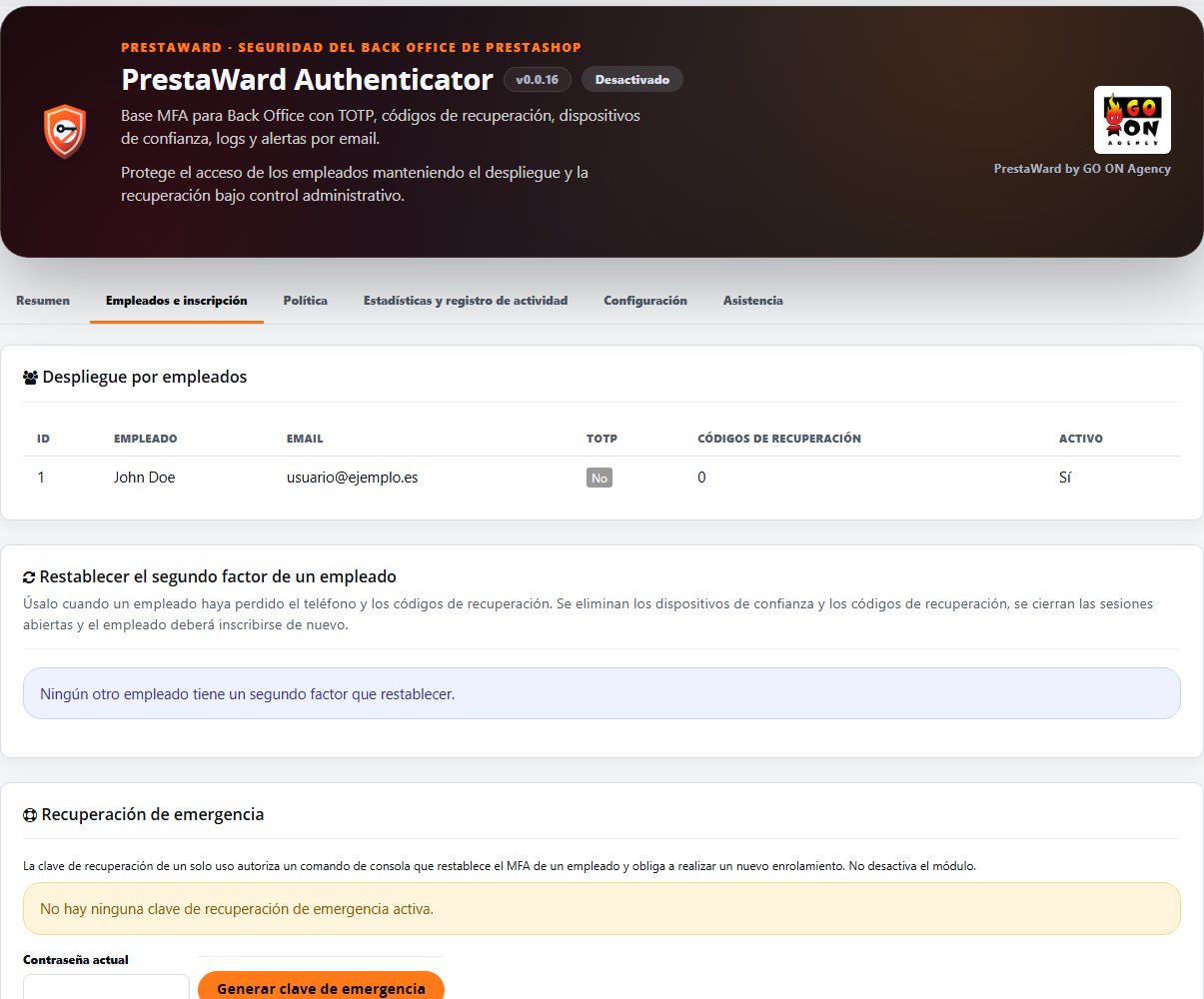
- Reset via the MFA administration panel, without console access: a super-administrator can reset another employee’s second factor. It prompts for the password; it cannot be used on oneself and deletes the employee’s authenticator, recovery codes, trusted devices and open sessions, requiring the employee to log in again on their next access. Other profiles with edit access to the MFA administration console can only reset employees with lower-privileged profiles, and only a super-administrator can reset another super-administrator. Every reset, and every rejected attempt, is logged in the access log.
- Emergency console access, as a last resort: requires access to the server and the single-use emergency key generated in the MFA administration panel. It allows you to reset an employee’s authentication factors or suspend the MFA requirement for one hour if no one can log in. This is logged, and the key cannot be reused.
Requirements
- PrestaShop 1.7, 8 or 9 and the version of PHP required by your version of PrestaShop (PHP 7.1 or later for PrestaShop 1.7).
- A TOTP authentication app on every employee’s mobile phone, except for profiles where you allow a code sent by email as a second factor.
- For email recovery, email codes and alerts, the shops must be able to send emails.
- For access keys (disabled by default), an HTTPS address in the Back Office.
- Global policy, employee inventory, email and logs are only available to super-administrators. All other employees manage only their own factors.
- Control panel and messages in nine languages.
Known limitations
- The PrestaShop core file manager (
filemanagerfolder in the admin panel) does not run modules, so it cannot enforce two-factor authentication. Where MFA is mandatory, remove this access for profiles that do not require it, or block it at the web server level. - The Protection of the Symfony pages in the Back Office requires PrestaShop 1.7.7 or later. In earlier versions, only the classic pages are protected.
- The PrestaShop web service and Admin API use their own keys and are outside the scope of the module.
What it does not do
- It does not protect your customers’ access to the shop: only the Back Office.
- It does not send TOTP secrets, recovery codes or employee data to external services.
- The footer of the module’s emails does not contain any links, contact details or images hosted outside your shop: the GO ON Agency logo is a file from the module itself that is served from your shop.
Compatibility verified
Version 0.0.16 passed laboratory testing on PrestaShop 1.7, 8 and 9 on 15 October 2026, both on a clean installation and when updating from version 0.0.15. Version 0.0.15 passed laboratory tests on PrestaShop 1.7, 8 and 9 on 13 October 2026: on a clean installation and following an upgrade from version 0.0.14 and from version 0.0.6, with the configuration, TOTP secrets and trusted devices retained, and no blocking errors in the logs. Version 0.0.13 was verified on PrestaShop 1.7.8.11 with PHP 7.4, PrestaShop 8.2.7 with PHP 8.1 and PrestaShop 9.1.4 with PHP 8.5.
Key features
- TOTP enrolment with current password and locally generated QR code.
- Secrets encrypted with AES-256-GCM and single-use HMAC recovery codes.
- Prevention of TOTP replay attacks through atomic counter increment.
- Protection against brute-force password attacks and MFA based on IP and identity, with configurable limits and locks.
- IPv4, IPv6, CIDR, trusted proxies and network lists, without allowing a secure list to bypass MFA.
- Trusted devices with 256-bit tokens, hashing, expiry and revocation.
- Employee self-service separate from global administration.
- MFA policies by profile and shop, with multi-shop resolution by the strictest requirement.
- Configurable session and device invalidation following a password change.
- Access recovery via personal codes, an optional code sent by email and, as a last resort, emergency console access using a one-off key.
- Optional code sent by email during an MFA challenge, with an expiry date, HMAC and sending limits.
- Grace period per profile before enforcing two-factor authentication, with a notification in the Back Office and monitoring of employees who have yet to comply.
- Resetting an employee’s second factor via the MFA administration panel, using the administrator’s password and logging each attempt.
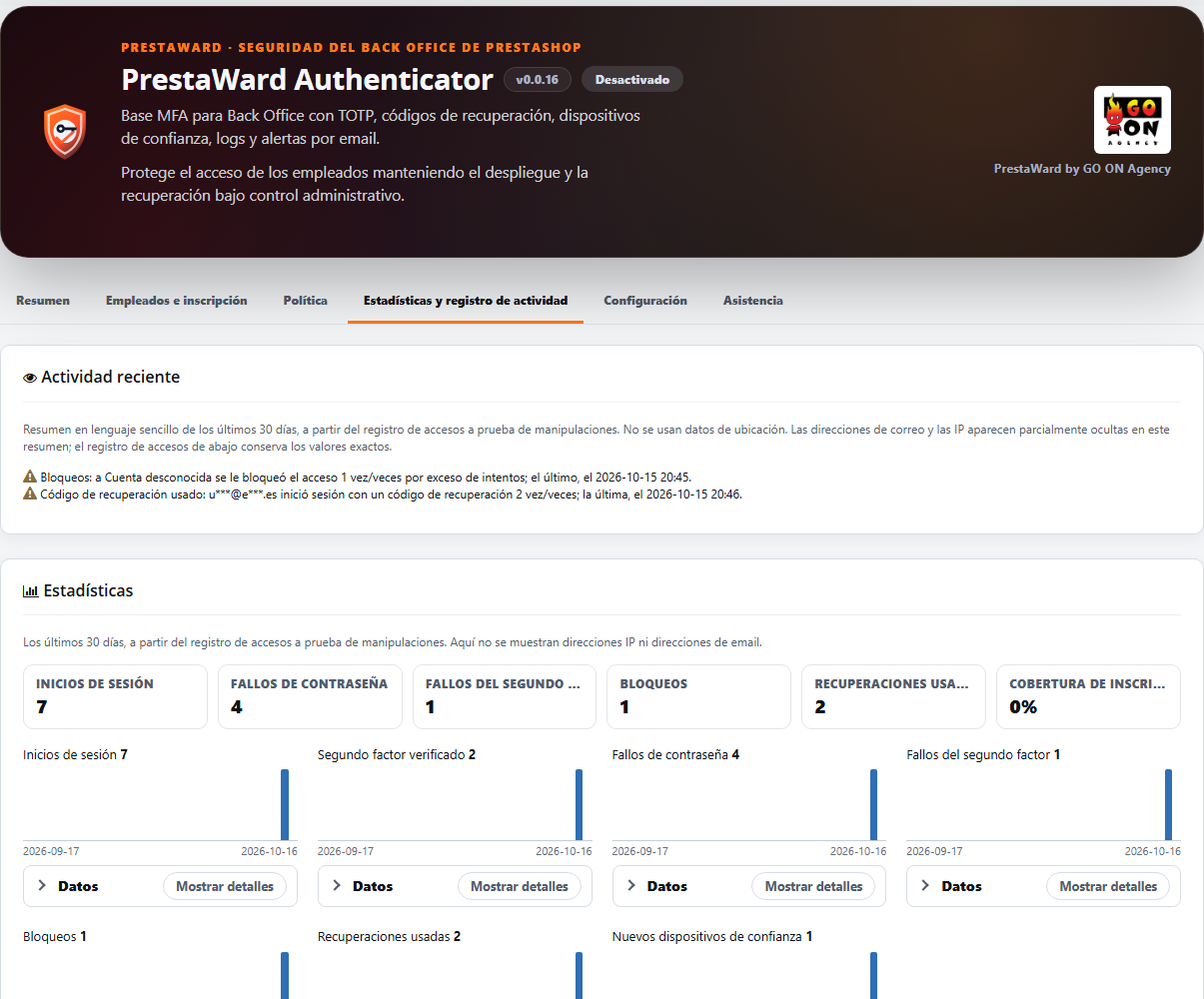
- Recent activity in the dashboard: a summary in simple sentences of the last 30 days’ access log (logins from a new IP address or browser, repeated failed attempts, blocks, recovery codes used and resets). Use only your own log, without geolocation or external services, and do not display full addresses: email addresses are masked and IP addresses retain only their /24 network (IPv4) or their first three groups (IPv6). The access log with an integrity string retains the exact values.
- Guided registration for the first factor, with a final page displaying recovery codes that requires users to download, copy or print them before continuing.
- Codes sent by email as an optional second factor, only for profiles you authorise: eight digits, stored solely as a keyed hash, valid for five minutes, single-use and with a sending limit. Employees confirm their email address once. ‘Recovery only’ works as before.
- My authentication at a glance: a status bar, a card for each method with a single collapsible action, recovery codes, trusted devices and, at the end, a collapsible ‘danger zone’. Removing MFA explains what is removed whilst retaining the password, a current code and explicit confirmation, and applies only to the employee who is logged in.
- Statistics for the last 30 days with daily trends (logins, verified two-factor authentications, password and two-factor authentication failures, lockouts, recovery attempts used and new trusted devices), registration coverage by profile and methods in use. It only displays counts from your own login log: it does not show IP addresses or email addresses.
- A bot that fails to pass the PrestaWard Captcha can no longer block an administrator’s account: this failure only counts towards the IP limit.
- Synchronisation with Integrity upon opening the dashboard, via a background request that does not slow down the page.
- A panel with five tabs (Overview, Employees and Registration, Policy, Statistics and Activity Log, and Settings) plus a Support tab, always the last one: the Overview tab displays the mode, registration coverage, errors and crashes from the last 24 hours and, at most, one alert line; each tab contains only its own settings.
- HMAC-chained logs, with retention, signed export, filters and pagination.
- Equivalent email alerts in PrestaShop 1.7, 8 and 9, with your shop’s logo in the header and, in the footer, the GO ON Agency logo with the signature ‘PrestaWard by GO ON Agency’.
- Standard filter bar in the access log: the selectors are arranged in a grid of equal width, the search box and the ‘Filter’ button are in the same row, and the secondary actions are aligned to the right.
- Unified design of the dashboard across the four PrestaWard modules: section headers, form cards with neutral borders and standard collapsible blocks, statistics displayed on a single line, and a larger GO ON Agency logo in the header. The main button is now a solid brand colour, without a gradient.
- Minimum quarantine period with no browsing until MFA is completed.
- Installation registration and MFA policy signed using Integrity, without transmitting TOTP secrets, recovery codes or employee data. On the module screen, the ‘Synchronise’ button updates the connection.
- GO ON Agency support panel with a downloadable diagnostic report. It is downloaded by an employee with editing permissions, having selected a shop. It contains only versions, statuses and counters; it does not include paths or credentials and is not sent automatically.
Secure use
The initial mode is Disabled. Each employee sets up their account from My authentication; the administrator reviews the rollout, goes through Audit only and enables Force once recovery has been verified.
Changelog
0.0.16
- The dashboard is organised into tabs: Summary (mode, registration coverage, errors and crashes over the last 24 hours, and a maximum of one alert line), Employees and Registration, Policy, Statistics and Activity Log, and Settings. The support panel has its own tab, Support, which is always the last one; the Integrity status appears below all the tabs and the header displays the GO ON Agency logo. Each tab saves only its own settings.
- This corrects the issue whereby a request that fails PrestaWard Captcha would count towards the block limit for the targeted administrator account. Previously, requests without a Captcha token counted as password failures, and a bot could block an account with just a few requests. When PrestaWard Captcha protects access to the Back Office and rejects a request, the failure counts only towards the IP limit. Without PrestaWard Captcha (or in Observation mode), nothing changes.
- New: one-time codes via email as an optional second factor. In the email settings, select ‘Second factor (weaker)’ and then enable this for each employee profile. Employees with these profiles confirm their email address once, using a code sent by post, and can then log in using codes sent by post: eight digits, stored only as a keyed hash, valid for five minutes, single-use and with a limit on the number of codes sent, just like the current recovery codes. The settings and the employee portal warn that these are weaker than an authentication app: anyone who can read the mailbox can gain access. ‘Recovery only’ works exactly as before.
- New: guided registration for the first factor. When an employee needs to register (or is in the grace period), ‘My authentication’ guides them through the process: scan the QR code, enter the code, and a final success page displaying the recovery codes (download, copy or print). The ‘Continue to the Back Office’ button only works after the codes have been downloaded, copied or printed. Access keys and codes sent by post, if enabled for the employee, are provided under ‘Other ways to secure your account’.
- My authentication is now a straightforward summary: a status bar (status, methods, recovery codes and trusted devices), a compact card for each method (authentication app, access keys and codes by post) with a single collapsible action, a recovery codes card, collapsed trusted devices and, finally, a collapsed ‘danger zone’. Removing MFA now explains what is removed and what happens next, whilst retaining a red button, the password, a current code and an explicit confirmation. It continues to apply only to the employee who has logged in and is recorded in the access log with an integrity chain.
- Privacy: ‘Recent Activity’ no longer displays full addresses. Email addresses appear as j***@d***.com and IP addresses retain only their /24 network (IPv4) or their first three groups (IPv6), just like Statistics. The access log with an integrity string retains the exact values and remains the authoritative source.
- New: Statistics. A new section displays data for the last 30 days as brief daily trends (logins, verified two-factor authentications, password failures, two-factor authentication failures, lockouts, recovery attempts used and new trusted devices), along with registration coverage for employees who need to register (by profile) and the methods in use. It only reads counts from your own access log and does not display IP addresses or email addresses.
- Passkeys (Touch ID, Face ID, Windows Hello and security keys) as a second factor: the code is included, but they are disabled by default and require an HTTPS address in the Back Office. An administrator enables them in the settings, and each employee adds them in ‘My authentication’ by entering their password and current code.
- Fixes an issue where the connection to Integrity would degrade in the Back Office for ‘all shops’: the installation’s identity was only saved for the first shop; the background synchronisation read it as empty, resulting in an ‘Invalid RSA public key’ error, and the connected shop’s status changed to ‘pending registration’. The identity is now read as a single unit from the global scope (or from the shop that stores it) in any context; the update passes an identity stored in a shop to the global scope without regenerating it; and, if it cannot be read, the Integrity status is left as it was and the last error is logged as a local error.
- Fixes an issue where the console installation (prestashop:module install) would create the PWA_* settings only for the first shop, whilst the ‘All Shops’ section of the Back Office reads the global settings. The installation now creates the global settings, and the update copies any missing ones from the first shop without overwriting any existing values.
- New: shared filter bar in the access log. The selectors are arranged in a grid of equal width; the search box and the ‘Filter’ button are in the same row; and the secondary actions are aligned to the right.
- Emails sent by the module display your shop’s logo in the header (with the shop name as the alt text) and a standard footer featuring the GO ON Agency logo and the signature ‘PrestaWard by GO ON Agency’, without any links or contact details. The footer logo is a file from the module itself, served from your shop.
- Unified design of the dashboard across the four PrestaWard modules: section headers, form cards with neutral borders and standard collapsible blocks, statistics displayed on a single line, and a larger GO ON Agency logo in the header. The main button is now a solid brand colour, without a gradient.
- Fixes an issue where, in PrestaShop 9, the admin theme displayed tabs with underlines as links and section titles in capital letters. The common styles override this only within the PrestaWard panel, so PrestaShop 1.7 and 8 look the same as before.
- Fixes an issue where, in PrestaShop 1.7, the module’s stylesheet was ignored when registered with the version number in the URL. The file is now checked and registered without parameters, so that the new styling appears in versions 1.7, 8 and 9.
- Fixes an issue where, in PrestaShop 9, resetting another employee’s second factor and synchronising with Integrity would check the security token using a method that PrestaShop 9 does not use, which could result in the token being rejected. It is now validated using the PrestaShop 9 service; in PrestaShop 1.7 and 8, the verification remains the same.
- When the connection to Integrity cannot be updated at that moment, the panel displays a single message: the saved connection remains valid and will be retried automatically. The labels on all tabs have been translated into all nine languages.
- The update creates any missing global settings, runs the schema step (profile column for email codes and access key tables) and keeps email codes and access keys disabled until an administrator enables them. Nothing changes in an existing installation until an administrator enables an option.
0.0.15
- New: reset an employee’s second factor from the MFA administration panel. If an employee loses their mobile phone and recovery codes, the administrator no longer needs console access. The reset deletes the employee’s authenticator and recovery codes, closes their trusted devices and open sessions, and the employee must log in again on their next attempt. It requires the administrator’s password; it cannot be used on oneself, and a super-administrator can only be reset by another super-administrator. Every reset, and every rejected attempt, is logged in the access log, and you can notify the employee by email.
- New: grace period before enforcement. In the profile policies, you can set a period of 3 to 14 days before ‘Enforce’ blocks employees who have not yet registered. They log in as normal and see a notice on every page of the Back Office stating the date from which two-step authentication will become mandatory; those who have already registered continue to request their code. The dashboard shows the deadline for each profile and how many employees have yet to register. Profiles without a grace period behave as in previous versions.
- New: ‘Recent Activity’ in the dashboard summarises the last 30 days of the access log in simple sentences: logins from an IP address or browser that the employee had not used before, repeated failed login attempts, account locks, recovery codes used and administrator resets. Use only your own log data, without geolocation or external services.
- Using a personal or email recovery code is now recorded in the access log as ‘Recovery code used’.
- The update adds two columns to the profile policies (with no grace period by default) and registers the hook that displays the grace period notification.
- The support and diagnostics panel is positioned just before the Integrity section, as in all other PrestaWard modules, and in the ‘all shops’ context it no longer disappears: it indicates that a shop must be selected.
- The style sheets are loaded with the module version, so the new look appears after updating without clearing the browser cache.
- Synchronise with Integrity every time you open the dashboard, using a background request that never slows down the page, and no more than once per minute per shop.
0.0.14
- Recommended security update: strengthens two-factor authentication in the Back Office, so that protected pages and actions are only accessible once this has been completed.
- Extends MFA verification to PrestaShop Back Office routes in versions 1.7.7 to 9 that do not use the classic template, such as exports and AJAX requests.
- It limits the number of attempts for all code checks in ‘My authentication’, including those made by employees from different IP addresses, and requires a verified session for sensitive account changes.
- Fixes a redirect loop in PrestaShop 9 when opening ‘My authentication’ whilst the second factor is pending.
- Employees with profiles created after installation can now access ‘My authentication’.
- Fixes the installation and Integrity retry process in PHP 7.1 and 7.2.
- Renews the signed MFA policy before it expires and displays a warning in the dashboard if it has expired.
- Adds a one-off emergency console access option to temporarily suspend the MFA requirement if no one can log in. This is a last resort: it requires access to the server and the emergency key; the suspension lasts for one hour and is logged. Employees can still regain access using their personal codes or via the optional email recovery option.
- Translates all access log events into the nine languages.
0.0.13
- Fixes the Back Office container build in legacy versions without
request_stack. - Retains MFA and attempt limits in PrestaShop 9; if the required context is missing, denies access.
- Adds a limited manual diagnostic report: download it and attach it to your support request, along with the issue and the steps to reproduce it. It does not send data automatically.
- Full interface in nine languages, with translated text and help messages.
0.0.12
- Fixes the registration test controller in PrestaShop 9 and displays the actual cause when Integrity fails.
- Updates the standard Back Office design and removes the built-in update checker from the Addons edition.
0.0.11
- Security patch: stops automatic re-registration attempts when the shop’s registration key changes and displays a clear warning in the Back Office.
0.0.10
- Automatic heartbeat without cron, using a non-blocking local probe and authenticated server-to-server communication via the Integrity API.
- Per-shop sealed credentials, signed MFA policy and last valid state, with no remote calls during login.
- Atomic lock, six-hour interval and wait time following failures to prevent duplicates.
- Lifecycle and update validated on PrestaShop 1.7, 8 and 9.
0.0.9
- Secure connection to Integrity per shop, sealed credentials and synchronisation from the Back Office.
- The signed remote policy can only reinforce the local MFA policy and never interferes with the login process.
- Settings reorganised into four tabs: MFA and notifications, Employee profile policies, Attempts and blocks, and Network and IP.
- Policies by profile and shop have been moved to a separate section to distinguish them from the global policy.
- The redundant update source has been removed from the settings: the official channel is now set by the module.
- Each configuration field includes a link to its explanation in the help guide.
0.0.8
- Security timeframe per employee for invalidating previous sessions, challenges and devices.
- Configurable invalidation following any password change, only after password recovery or an administrative change, or never.
- ‘Inherit’, ‘Required’, ‘Optional’ and Disabled policies by profile and shop.
- Super-administrators are always required in Force mode, and multi-shop resolution follows the strictest policy.
- Single-use emergency key and recovery exclusively via the console, with no permanent web bypass.
- Optional email recovery during an MFA challenge, with an eight-digit code, HMAC, a five-minute expiry time and a limit on the number of attempts.
- HMAC-chained logs, integrity diagnostics, retention periods of 30 to 730 days and signed JSON export.
- Idempotent migration 0.0.8 and validated update from 0.0.7 on PrestaShop 1.7, 8 and 9.
0.0.7
- ‘Security posture’ divided into ‘MFA and alerts’, ‘Attempts and blocks’ and ‘Network and IP’, with atomic saving.
- Keyboard-accessible tab navigation, selection persistence and automatic opening of the validation errors panel.
- Actual pagination of database records with 25, 50 or 100 rows per page.
- Filters for records by date range, employee or email, event, result and IP.
- Redesigned ‘My authentication’ header with improved contrast, hierarchy, mobile responsiveness and corporate access options.
- The email test checks the transport and recipients without requiring operational alerts to be active.
- Visible diagnostics of PrestaShop’s mail transport, distinguishing between capture servers and actual SMTP servers.
- Error diagnostics compatible with the
SwiftMessageandMailerMessagelogs in PrestaShop versions 1.7, 8 and 9. - Removed the duplicate shop prefix from subject lines and strengthened the alternative link to the Back Office.
- Corporate email sending validated via Exchange Online across all three supported versions.
- Updates panel aligned with Snapshot using PrestaWard Update Manifest v1, status, severity and SHA-256.
- Idempotent migration 0.0.7 and validated update from 0.0.6 on PrestaShop 1.7, 8 and 9.
0.0.6
- Transactional protection against brute-force password attacks and MFA based on IP address and identity.
- Support for IPv4, IPv6, CIDR, trusted proxies, allowlist and blocklist.
- Limited block notices to prevent deliberate email storms.
- Server quarantine without a menu, quick links or Back Office content.
- ‘My authentication’ has been redesigned with four steps, accessible labels, exportable recovery options and individual revocation.
- Equivalent and translated emails in PrestaShop 1.7, 8 and 9, with results by recipient.
- Hardened update checker: corporate HTTPS, no redirects, TLS, body size limit and strict v1 manifest.
- Migration 0.0.6, update from 0.0.5 and complete compatibility matrices for all three supported versions.
0.0.5
- Multi-step login: PrestaShop first validates the password and then requests TOTP or recovery.
- Authenticated session in quarantine, linked to the employee and restricted to ‘My authentication’ until MFA is completed.
- Closing the side access via direct controllers and AJAX/XHR requests.
- Mandatory enrolment for employees and super-administrators without confirmed TOTP.
- Trusted devices have been corrected in PrestaShop 9 and linked to the employee and the browser.
- Second factor redesigned in Spanish using the PrestaWard visual system.
- Extended guide with actual screenshots of two-factor authentication in PrestaShop 1.7, 8 and 9.
- Complete clean test matrix: email, TOTP, anti-replay, recovery, trust and quarantine.
0.0.4
- Compulsory enrolment in ‘My authentication’ for accounts without TOTP when the mode is set to Force.
- Second login step displayed only after the password has been verified.
- Super-administrators included in the same personal authentication flow.
- MFA login form redesigned and translated into Spanish.
- Error 500 in the test email has been corrected.
- MFA self-service for each employee, kept separate.
- Policy, inventory, email and logs restricted to the super-administrator.
- Modern and legacy permissions rebuilt in an idempotent manner.
- Accurate diagnosis of recipients, SMTP configuration and transport.
- Unified real IP in logs, rate limiting, emails and trusted devices.
- Back Office events and texts translated into Spanish.
- Headers and design aligned with the PrestaWard family.
- Corporate support restored to hola@go-onagency.es.
- Upgrade 0.0.4 and clean test matrix in PrestaShop 1.7, 8 and 9.
0.0.3
- Unified visual geometry with PrestaWard Snapshot.
- Revocable trusted devices with 256-bit random tokens stored as hashes.
- Secure, HttpOnly and SameSite=Lax cookies are restricted to the Back Office.
- Equivalent alerts in legacy and Symfony integrations.
- Branding, product links, guide, support and test email.
- Rate limit validation in PrestaShop 1.7, 8 and 9.
0.0.2
- Password-protected TOTP enrolment and local QR code.
- Single-use recovery codes stored as HMAC.
- Atomic protection against TOTP replay attacks.
- Rate limiting by account and IP address.
- Specific integrations for legacy login and PrestaShop 9 Symfony.
- Password- and factor-protected authenticator rotation and MFA deactivation.
0.0.1
- Secure scaffold disabled by default.
- MFA tables, TOTP, dashboard, audit, logs, alerts and initial translations.